Troubleshooting
Multifactor authentication
Multi-Factor Authentication (MFA) provides an additional layer of security for your Dilato account by requiring a one-time verification code in addition to your password during login.
The one-time code is generated by an authenticator app installed on your mobile device. Dilato does not use SMS for MFA, as this method is considered less secure.
Setting up MFA on your Dilato account
You can start the MFA setup in one of two ways:
- You may be prompted to set it up during login, or
- You can enable it manually from Settings, by selecting Set up MFA.
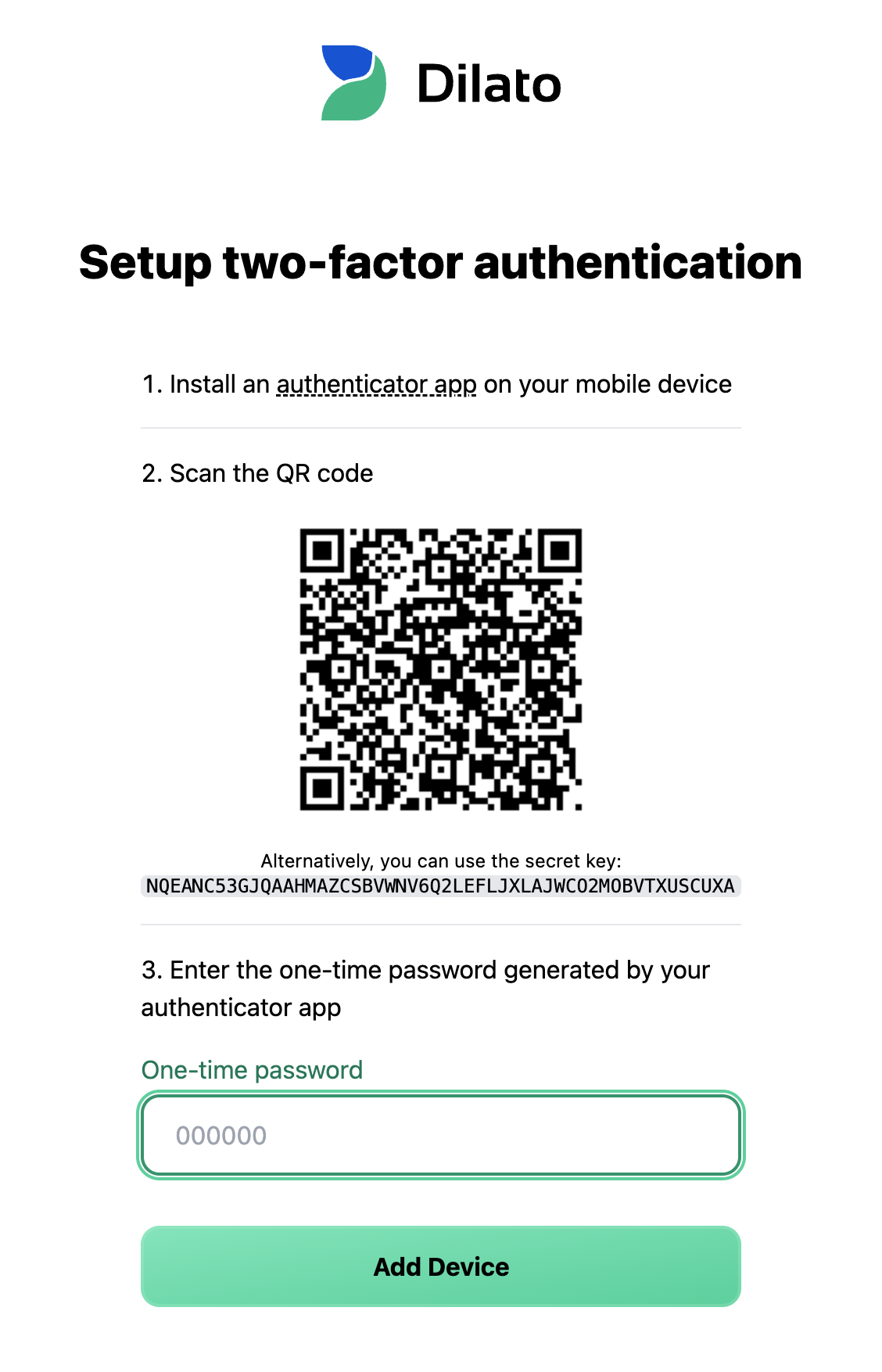
The MFA setup page will open:
-
Install an authenticator app on your phone if you don’t already have one. Dilato supports any app that generates 6-digit time-based codes (TOTP), such as:
- Google Authenticator
- Microsoft Authenticator
- Proton Authenticator
- Bitwarden Authenticator
-
Open the authenticator app on your phone and scan the QR code displayed in Dilato.
- If you cannot scan the QR code, you can enter the secret key manually in your authenticator app.
-
Your authenticator app will generate a 6-digit code. Enter this code in Dilato and click Add device.
Once confirmed, MFA is enabled on your account. You must keep access to your mobile device and authenticator app in order to complete future MFA verifications.
Logging in with an MFA code
To log in with a one-time code when MFA is enabled on your Dilato account:
- Log in with your email and password as usual.
- You will be prompted to enter a 6-digit authentication code.
- Open the authenticator app on your phone.
- Enter the current code shown in the app.
- Click Continue.
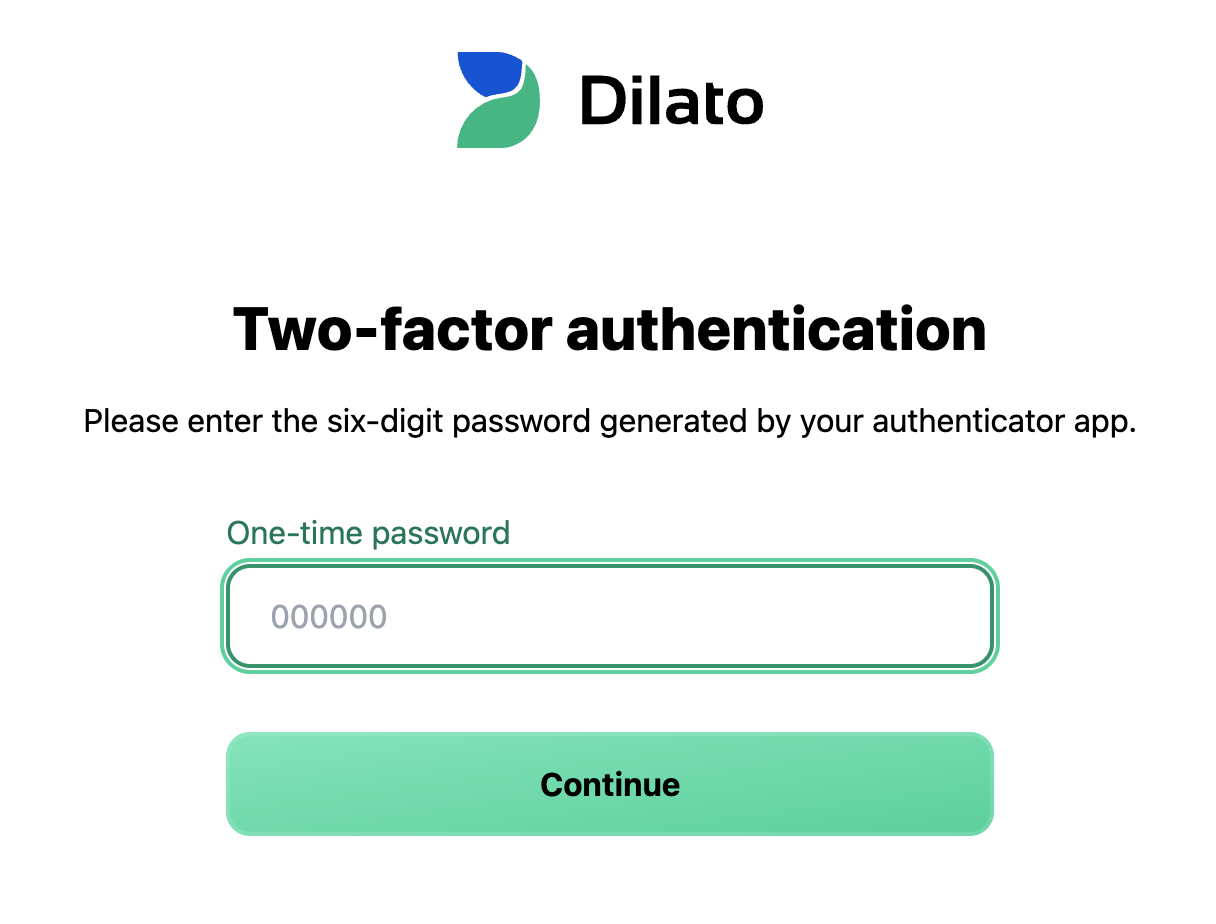
Authentication codes change every 30 seconds. If a code expires, simply enter the next one.
How to reset MFA
To reset MFA on your account:
- Log in using your email, password, and current MFA code.
- Open Settings in Dilato.
- Under Account, select Modify MFA settings.
- Enter your active MFA code when prompted.
- Follow the steps to set up MFA again.
This is useful if you want to switch to a new phone or authenticator app.
How to disable MFA
Once MFA is enabled, it cannot be disabled by the user. If you have questions or require assistance, contact us at info@dilato.app.
What to do if you see “one-time code is incorrect”
For security reasons, verification codes are short-lived and expire quickly. Enter the code as soon as it appears in your authenticator app. If the code expires, wait for the next one and try again.
If the error persists, check that the date and time on your phone are set correctly. Authentication codes are time-based and require accurate system time. Make sure your device is configured to update the time and time zone automatically.
What if I’m completely locked out of my account?
If you can’t access your account because MFA verification is blocking you (for example, you no longer have access to your phone or authenticator app), contact us at
info@dilato.app using the same email address you use to log in to Dilato.
Please include as much of the following information as possible to help us investigate:
- Your full name
- Your professional order ID number
- Your workplaces (clinics or organizations)
- The Dilato plan associated with the account (Free, Plus, or Scribe)
- Billing information (last four digits and expiration date of the credit card, or the name and email address of the person paying for the account)
- Any cities, states, or provinces from which you accessed the account in the past 30 days
- Devices used in the past 30 days (Mac, Windows, iOS, Android)
- Browsers used to log in to the account in the past 30 days (Safari, Chrome, Edge)